.avif)
How to Set Up Klaviyo for Shopify: The Complete Integration Guide

TL;DR: Learning how to set up Klaviyo for Shopify takes about 15 minutes to connect, but the order you build things in decides whether email becomes your top revenue channel or a sunk cost. This guide walks you through the integration, data sync, onsite tracking, sign-up forms, sender authentication, and the first flows to launch, so your store starts earning from email fast.
Most Shopify founders install Klaviyo, click "Integrate," and assume the money will follow. Then three months pass and email is driving 4% of revenue instead of 30%. The platform isn't the problem. The setup is.
Knowing how to set up Klaviyo for Shopify the right way is what separates stores that print money from email and stores that just collect addresses. The integration itself is simple. What matters is what you configure during setup: which data syncs, whether onsite tracking fires, how your sending domain is authenticated, and which flows go live first.
Across the Shopify stores we manage at CartStrings, email drives an average of 32% of total revenue. That number is built during the first week, not month six. This guide gives you the exact setup sequence we use, so you skip the expensive mistakes and start earning from your list immediately.
How do you connect Klaviyo to Shopify?
To connect Klaviyo to Shopify, open Klaviyo, go to the Integrations tab, click "Explore apps," search for Shopify, and click Install. Paste your store URL in the mystore.myshopify.com format, click "Connect to Shopify," review the permissions in Shopify, click "Install app," then confirm by clicking "Integrate." The whole connection takes about 15 minutes.
That's the mechanical part, and it's genuinely fast. The official Klaviyo setup steps confirm the flow: install the app, authorize permissions, integrate. Good news for your wallet, too. The Klaviyo app on Shopify is free, with no separate integration fees, and Klaviyo's usage-based pricing starts at $0 for up to 250 contacts.
Here's where founders rush. The integration screen has settings that decide what data Klaviyo can actually use. Skip them, and you'll build flows on top of empty data. Configure them correctly, and Klaviyo starts working with your full customer history from day one.
What data syncs between Shopify and Klaviyo?
Klaviyo syncs customer profiles, order events (Placed Order, Ordered Product, Checkout Started), onsite behavior (Viewed Product, Added to Cart), and product catalog data. It pulls the last 90 days of Shopify data first, then runs a full historical sync that can take anywhere from a few minutes to several days depending on your store size.
This two-phase sync is smart design. You get your most recent customers immediately, so you can launch flows while the older data backfills. A green progress bar shows where the sync stands.
After the initial sync finishes, new data flows in real time. Event data usually appears in Klaviyo within a few seconds of the action happening in your store. That speed is what makes time-sensitive flows like abandoned cart possible.
During setup, check the box to sync your Shopify email subscribers to Klaviyo. This automatically adds customers who accept email marketing at checkout or through any Shopify sign-up form. Without it, you're leaving subscribers stranded in Shopify where Klaviyo can't email them.
Turn on onsite tracking before anything else
Onsite tracking is the single setting most new users miss, and it quietly breaks half your flows.
Onsite tracking captures browsing behavior on your store: which products people view, what they search, and what they add to their cart. In your Shopify integration settings, scroll to the Onsite Tracking section and enable tracking for behavioral events like Viewed Collection, Submitted Search, and Added to Cart. Viewed Product and Active on Site track by default once the app embed is enabled.
Without onsite tracking, your browse abandonment flow has nothing to trigger on. Your product-view segments stay empty. Your abandoned cart flow can't see what's in the cart. You're flying blind on the exact behavioral signals that make Klaviyo worth paying for.
Confirm the app embed is active. If you see a green banner saying the Klaviyo app embed is enabled on your Shopify store, you're set. This same embed powers your sign-up forms, so it does double duty.
How do you set up Klaviyo sign-up forms on Shopify?
To set up Klaviyo sign-up forms on Shopify, first confirm the Klaviyo app embed is enabled in your integration settings, then build a popup, flyout, or full-page form in Klaviyo's form builder and publish it. These form types require no code pasting and appear on your store automatically once the embed is active.
Email capture is the fuel for everything else. No list growth, no flow revenue. So this step is not optional, even though it's easy to postpone.
For inline embedded forms (like a footer signup), you'll add the Klaviyo Embedded Form app section to your Shopify theme and paste the form's embed code. In the theme editor, select Add section, then Apps, then Klaviyo Embedded Form. Put it in the footer if you want it on every page.
A well-built popup is where capture rates are won or lost. We've seen stores triple their signup rate just by fixing form timing, targeting, and offer. If you want this dialed in without the trial and error, our popups and capture service is built specifically for Shopify brands. Across our accounts, a properly configured popup delivers a 3x form submission improvement over default settings.
Authenticate your sending domain so emails reach the inbox
You can build the best flows on earth, but if your emails land in spam, none of it matters. Sender authentication is the deliverability foundation, and it belongs in your setup, not your someday list.
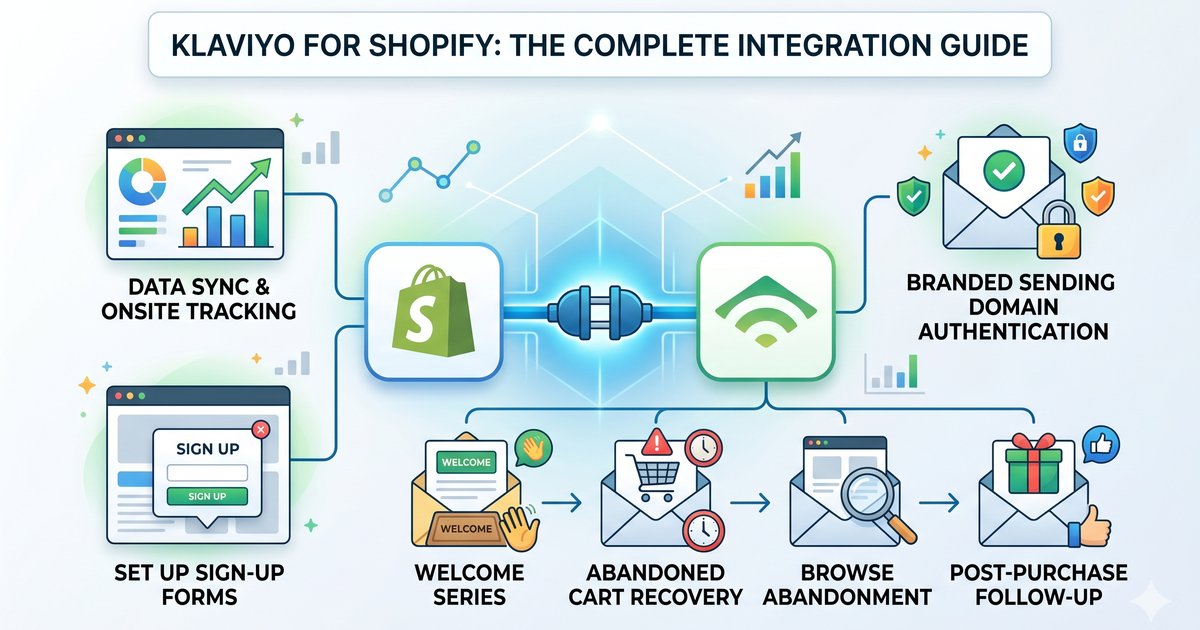
A branded sending domain makes emails appear to come from your brand instead of Klaviyo. When you set one up, the DNS records Klaviyo provides automatically enable DKIM and SPF authentication. You add three records: a CNAME for tracking, a CNAME for DKIM, and a TXT record for verification. Klaviyo's Connect with Entri option can publish these automatically if your DNS provider is supported.
Two requirements catch new stores off guard. Your Klaviyo account must be on a paid plan, since dedicated sending domains aren't available on free accounts. And your domain should be registered for at least 30 days to build enough reputation for reliable delivery. DNS changes can take up to 48 hours to propagate, so do this early.
Don't skip DMARC. Klaviyo lets you add a DMARC record during domain setup, which is strongly recommended to meet current Gmail and Yahoo sender rules. Start with a monitoring policy (p=none) so you can watch authentication results without blocking your own mail. Getting authentication right is what keeps stores at a 99.8% inbox delivery rate, which is the standard we hold across the accounts we run. If deliverability is already a struggle, our deliverability service fixes the technical setup and list hygiene together.
Which Klaviyo flows should you set up first?
Set up these flows first, in this order: welcome series, abandoned cart, browse abandonment, and post-purchase. Stores that launch the core flows within their first 60 days on Klaviyo typically see flow-attributed revenue reach 25 to 35% of total store revenue within six months.
The reason flows come before campaigns is simple math. Flows generate nearly 41% of total email revenue from just 5.3% of sends, with revenue per recipient roughly 18 times higher than one-off campaigns. They run automatically, around the clock, with no ongoing work.
Start with the abandoned cart flow, because it's the highest-revenue flow on most stores. Use "Checkout Started" as the trigger. The most important setting is the flow filter "Has not Placed Order since starting this flow." Without it, customers who already bought keep getting reminders to buy what they just purchased. Use Klaviyo's dynamic cart blocks so each email shows the actual products left behind, with images, prices, and links, not generic bestsellers.
Then layer in your welcome series to convert new subscribers, browse abandonment to recover product-viewers, and post-purchase to drive repeat orders. If you'd rather have these built correctly the first time, our email automations service ships the full flow stack tuned to your catalog and customer behavior.
What's new with the Klaviyo and Shopify integration in 2026?
In March 2026, Klaviyo and Shopify deepened their product integration with a feature called Locale Aware Catalogs, which automatically syncs market-specific product data (translated content, regional pricing, currency, and localized URLs) from Shopify into Klaviyo. It's available immediately for all Shopify Markets merchants.
This matters most if you sell across borders. The update means a single email or text template can dynamically adapt to each customer's location, language, and currency, instead of you building separate campaigns per market.
The integration added five capabilities, including smart regional filtering so shoppers only see products available in their market, and automatic localized links that send each customer to the correct version of your storefront. The broader rollout is aimed at helping merchants unify customer data across regions. If you're a single-market store, this won't change your setup. If you're expanding internationally, it removes a real headache.
Conclusion
Setting up Klaviyo for Shopify is less about clicking "Integrate" and more about the configuration choices you make in the first hour. Get three things right and you're ahead of most stores: turn on onsite tracking so your behavioral flows have data, authenticate your sending domain so emails reach the inbox, and launch your core flows before you touch campaigns.
Do that, and email stops being an afterthought and starts pulling its weight as a revenue channel. The stores hitting 30%+ of revenue from email didn't get there with a special template. They got there with a clean setup and the right flows running early.
If you want your Klaviyo account set up to perform from day one, start with a free Klaviyo audit. We'll show you exactly what's working, what's leaking revenue, and what to fix first.
Frequently Asked Questions
How long does it take to set up Klaviyo for Shopify?
The connection itself takes about 15 minutes. After you integrate, Klaviyo syncs your last 90 days of data quickly, then runs a full historical sync that can take from a few minutes to several days depending on how many orders, customers, and products you have. You can start building flows while the older data backfills in the background.
Is Klaviyo free with Shopify?
The Klaviyo app on Shopify is free to install, with no separate integration fees. Klaviyo's pricing is usage-based and starts at $0 for up to 250 contacts and 500 sends per month, then scales with your contact count. A store with around 10,000 subscribers typically pays about $200 per month.
What data does Klaviyo pull from Shopify?
Klaviyo syncs customer profiles, order events like Placed Order and Checkout Started, onsite behavior like Viewed Product and Added to Cart, and your product catalog. After the initial historical sync, new events flow into Klaviyo in real time, usually within seconds of happening on your store.
Do I need a dedicated sending domain in Klaviyo?
Yes, if you want reliable deliverability. A branded sending domain automatically enables DKIM and SPF authentication and helps your emails reach the inbox instead of spam. It requires a paid Klaviyo plan and a domain registered for at least 30 days, and adding a DMARC record during setup helps you meet current Gmail and Yahoo sender requirements.
Which Klaviyo flow makes the most money?
The abandoned cart flow is usually the highest-revenue flow on a Shopify store. Across the industry, automated flows generate nearly 41% of total email revenue from just 5.3% of sends. Trigger it on "Checkout Started" and always add the "Has not Placed Order since starting this flow" filter so buyers stop receiving reminders once they purchase.
Explore other Latest Blogs & Insights


Let’s build email marketing that feels like it was done in-house.